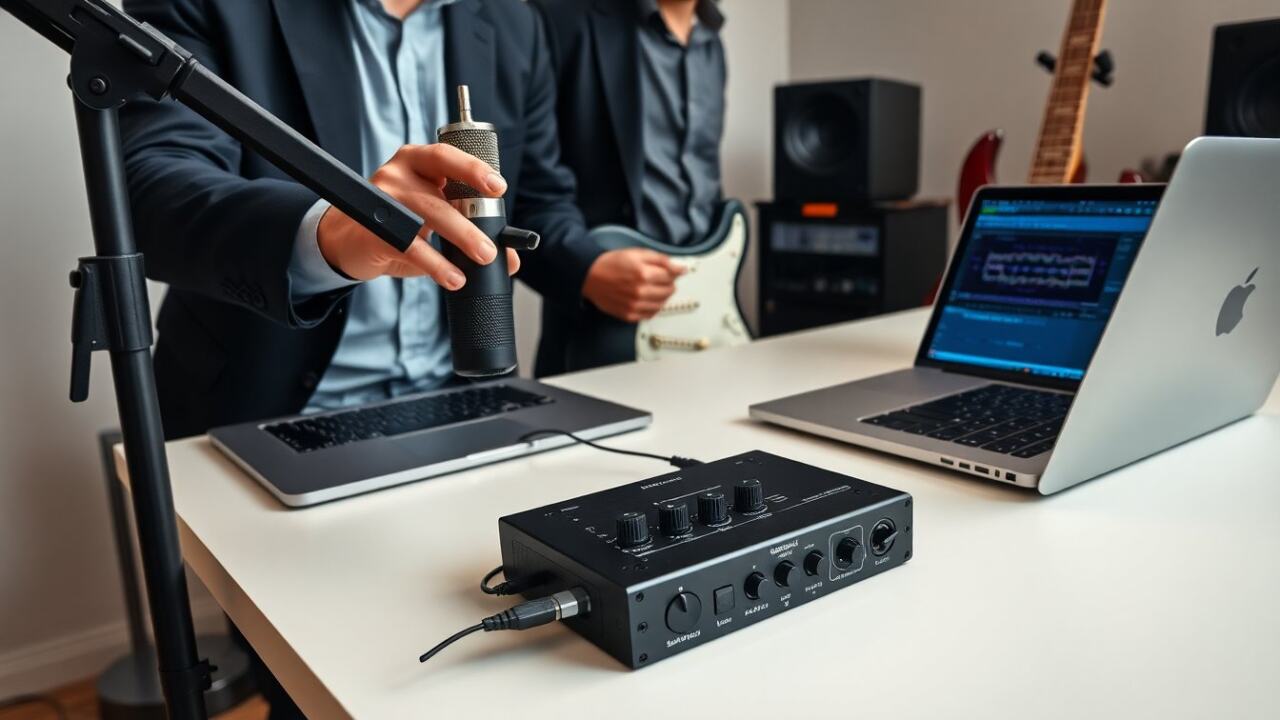
A usb c audio interface connects microphones, instruments, and line-level gear to a laptop, tablet, or phone using a USB‑C connection. Compared with a phone jack or built‑in sound card it delivers lower latency, better preamps and analog‑to‑digital conversion, cleaner monitoring, and more flexible routing. This guide explains what a usb c audio interface does, which features matter most for different workflows, and how to pick the best model for recording, streaming, podcasting, or live work. Practical tips and troubleshooting steps are included so you can evaluate compatibility and get reliable performance from your interface in 2026.
Key Takeaways
- A USB-C audio interface improves sound quality and reduces latency by converting analog signals to digital with better preamps and converters than built-in ports.
- Choose a USB-C audio interface based on your recording needs, considering inputs, preamps, driver support, and compatibility with your devices and software.
- Low-latency drivers and appropriate sample rate (commonly 24-bit/44.1 or 48 kHz) are essential for smooth real-time monitoring and high-fidelity sound capture.
- Compact, bus-powered USB-C audio interfaces fit mobile musicians, while multi-channel units work best for home studios and live band recordings.
- Setup involves connecting with the supplied USB-C cable, installing necessary drivers, configuring system and app settings, and troubleshooting with cable checks and updates to firmware or drivers.
What Is A USB-C Audio Interface And Why It Matters
A usb c audio interface converts analog sound into digital audio streams and converts digital audio back to analog for monitoring. It plugs into a host device through a USB‑C port and carries both power and data, which allows many modern interfaces to be bus‑powered and compact. Key hardware parts include preamplifiers for microphones, instrument inputs for guitars and basses, line inputs for keyboards and outboard gear, analog outputs for studio monitors, headphone amps for direct listening, and the ADC/DAC converters that determine fidelity.
Why it matters: the preamps and converters in a usb c audio interface are typically higher quality than those built into most laptops and mobile devices, so recordings are quieter, clearer, and more usable from the start. Latency—how quickly audio passes through the system—tends to be far lower on a dedicated interface than when using generic USB audio or headset jacks, which matters for live monitoring, overdubbing, and playing virtual instruments. Control features like gain knobs, phantom power for condenser mics, direct monitoring, and routing options also make workflows faster and reduce the need for external gear.
Key Features To Evaluate Before You Buy
When evaluating a usb c audio interface, weigh features against how you actually record and perform. The most important areas to evaluate are inputs and outputs (how many and what type), preamp quality (headroom, noise floor, and character), converters (bit depth and sample rate capability), driver stability and latency, and power type (bus‑powered vs. external supply). Also consider build quality, physical controls, bundled software, and expandability (ADAT, SPDIF, word clock).
Practical checklist: list the number of mics, instruments, and monitors you need to connect; decide if you need simultaneous recording of multiple sources; check whether the interface supports class‑compliant operation for plug‑and‑play use with iOS/Android devices or requires a driver for desktop OS; confirm the availability of direct monitoring and separate headphone mixes; and verify that the unit’s dimensions and power requirements match your mobile or studio setup. Finally, read user reports about driver updates and long‑term reliability—stable drivers prevent the majority of performance headaches.
Inputs, Preamps, And I/O Options
A usb c audio interface typically offers XLR mic inputs, 1/4″ TS instrument jacks, balanced TRS line inputs/outputs, headphone outputs, and sometimes digital I/O such as ADAT or S/PDIF for expansion. Preamps raise microphone signals to usable levels and shape the sound; look for units with low self‑noise, sufficient gain for dynamic and ribbon mics, and clean headroom. Metering—either LED or software meters—helps set gain correctly and avoid clipping. Balanced main outputs reduce hum and interference for studio monitoring; separate monitor and headphone level controls improve workflow.
Considerations by use case: solo singer/songwriters often need one or two high‑quality preamps and an instrument input; podcasters may prioritize simple level controls and multiple headphone mixes for hosts and guests; bands and drum tracking require multi‑channel front ends or options to expand via ADAT; and electronic producers might value low‑latency monitoring and multiple line outputs for hardware synthesisers. Choosing the right I/O prevents being forced into extra hardware later.
Latency, Drivers, Sample Rates, And Bit Depth
Latency is the delay between input and monitored output; if it’s high you’ll notice lag when singing or playing. A usb c audio interface’s drivers and buffer settings determine achievable latency. Class‑compliant devices can be convenient for mobile use but some manufacturers supply dedicated drivers for Windows or Mac that provide lower latency and more stable performance. Check for reliable driver support and frequent updates from the maker, especially if you run newer OS versions.
Sample rate and bit depth affect fidelity and resource use. Common project settings are 24‑bit at 44.1 or 48 kHz for music and voice work; 96 kHz is often used for higher‑resolution needs but requires more CPU and storage. Buffer size settings trade CPU load for latency—smaller buffers reduce latency but increase CPU demand. Test the interface on your system to confirm you can hit comfortable buffer sizes (for example, 64–128 samples) without dropouts. Also verify whether the interface supports simultaneous multitrack recording at the full sample rate and bit depth you plan to use.
Choosing The Right Model For Your Use Case
Selecting a usb c audio interface should be driven by concrete use cases, not features alone. Start by listing what you record now and what you might record in the next two years. Important questions: how many tracks do you record at once; will you need extra inputs for guests or instruments; do you need low power draw for mobile sessions; and will you connect to a phone or tablet as well as a computer?
Examples of matching features to workflows: a singer‑songwriter who records vocals and guitar on the move will likely prefer a compact, two‑input, bus‑powered usb c audio interface with a robust headphone amp and clear preamps. A home studio tracking small bands will benefit from a larger unit with four to eight inputs, ADAT expandability, and rack‑mount options. A podcaster may prioritize multiple mic inputs, convenient onboard monitoring mixes, simple gain controls, and software tools for editing. Live streamers often want direct monitoring, easy level control, and compatibility with streaming software. Balance price against the features you regularly use—don’t overspend on channels you will never use, but don’t skimp on preamp and converter quality if recording is a core requirement.
Home Studio, Podcasting, And Mobile Musician Recommendations
Home studio: aim for a usb c audio interface with reliable drivers, multiple balanced outputs for monitor control, and clean converters. Two‑to‑eight input units hit the sweet spot for most hobby and project studios, and bundled DAW software or plugin suites can speed the learning curve.
Podcasting: prioritize low‑noise preamps, clear gain staging, and at least two headphone outputs with independent mixes for hosts and guests. Built‑in talkback or simple routing for remote callers can be useful. Consider an interface that’s easy to control on the fly so you can focus on conversation rather than tweaking levels.
Mobile musicians and streamers: choose a compact, solidly built usb c audio interface that is bus‑powered when possible, has low power draw, and supports connection to tablets or phones. Direct monitoring and a simple front‑panel layout make live streaming and quick recording sessions smoother. If you perform without a laptop, check for battery‑powered options or the ability to run from a phone with a compatible cable and host mode enabled.
Setup, Compatibility, And Troubleshooting Tips
Connecting and configuring a usb c audio interface is usually straightforward but a few steps help avoid common problems. Unpack and connect with the supplied USB‑C cable, install any manufacturer drivers if required, and then set the interface as both input and output device in your operating system and in your DAW or recording app. Choose an appropriate sample rate and buffer size—lower buffer sizes reduce monitoring latency but increase CPU load. Enable direct monitoring if you need zero‑latency headphone mixes.
If you experience noise or hum, check gain staging first: set the mic preamp so the loudest source peaks below clipping and increase only as needed. Inspect cables and connectors for wear, use balanced outputs where possible to reduce interference, and unplug unneeded USB devices if you see dropouts. For disconnection issues try a different USB‑C port, a high‑quality cable, or a powered USB hub (some laptops have weak ports). Keep firmware and drivers up to date, and test the interface on another computer or mobile device to isolate whether an issue is host‑side or device‑side. If problems persist, consult the manufacturer support with a clear description of steps already taken, plus your host OS and DAW versions to speed troubleshooting.
Final tip: treat the usb c audio interface as the center of your recording chain—good cabling, proper gain staging, and compatible software will let the interface’s preamps and converters deliver the best results.