A good home office setup helps people work well and feel comfortable. It reduces strain and boosts focus. This article shows clear, practical steps to pick a location, set up ergonomics, choose reliable tech, and organize the space so it supports a full day of productive work. The guidance emphasizes small, actionable changes—where to place a desk, how to layer lighting, which peripheral features to prioritize, and simple storage patterns—that together improve comfort, reduce distractions, and help maintain daily routines. These tips apply whether you work full time, hybrid, or part time from home; you can adapt them to small corners, dedicated rooms, or shared spaces.
Key Takeaways
- A home office setup should be located in a quiet area with natural light and minimal distractions to maximize focus and productivity.
- Optimizing lighting with layered sources and managing acoustics using soft surfaces and noise-cancelling headphones enhances work comfort and reduces strain.
- Ergonomic furniture is essential; choose a chair with lower back support and a desk height that keeps forearms parallel to the floor for healthy posture.
- Reliable tech, including fast internet, quality peripherals, and power backups, forms the backbone of an efficient home office setup.
- Effective cable management, smart storage solutions, and regular tidying maintain a clean and organized workspace, improving daily work flow.
Choose The Right Location For Focus And Flow
People should pick a quiet corner or spare room for a home office setup. Start by monitoring light, noise, and household traffic at different times of day before committing—what is quiet in the morning may be busy in the afternoon. Favor a location with consistent natural light and low foot traffic; if the only option is a shared space, use screens or curtains to create a visual boundary. Avoid placing the desk where doors open directly behind you; instead orient the desk so you can see room entrances or use a half-wall/shelf as a buffer. Test the internet signal in the spot and consider a mesh node or powerline adapter if Wi‑Fi is weak. Finally, choose a place where you can close a door or deploy a privacy screen for calls, and plan a small landing zone for everyday items like a water bottle and notepad so you don’t need to leave the chair often.
Optimize Lighting, Acoustics, And Distractions
Good lighting and low noise are central to a productive home office setup. Use layered lighting—ambient overhead, task lighting for the desk, and optional accent light for video backgrounds—to reduce eye strain and avoid harsh shadows on video calls. Place task lights to the side of your dominant hand to minimize screen glare and reflections. For acoustics, introduce soft surfaces such as rugs, curtains, upholstered chairs, or a fabric-covered pinboard to reduce echo; add a bookshelf or plants to break up reflective surfaces. For noisy households, schedule focused periods, post a visible “do not disturb” sign, or use noise-cancelling headphones for call-heavy work. Remove or hide visual distractions near your camera frame and keep frequently used reference materials within arm’s reach but out of the immediate sightline to reduce fidgeting.
Design An Ergonomic Desk, Chair, And Layout
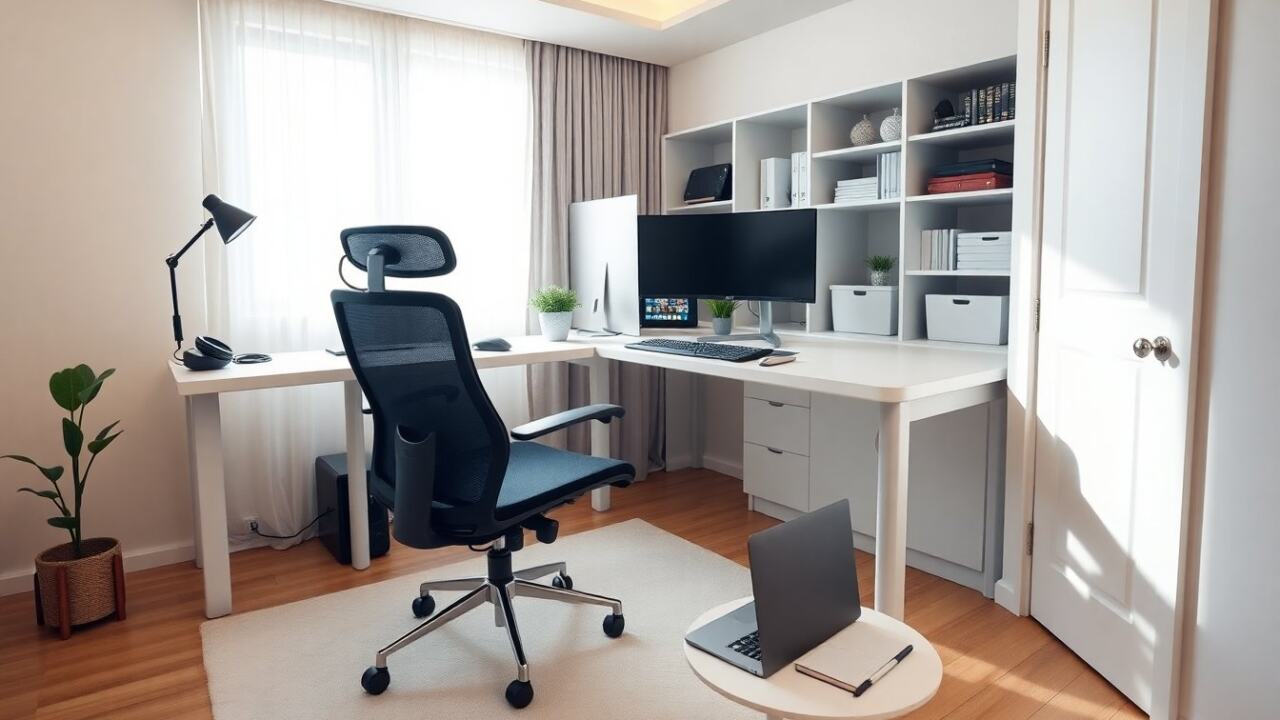
Ergonomics prevent fatigue and keep you working comfortably for longer. Choose a chair that supports the lower back (lumbar support) and allows your feet to rest flat on the floor or on a footrest. A desk height that keeps forearms roughly parallel to the floor when typing helps reduce wrist and shoulder strain; adjustable or sit-stand desks let you vary posture through the day. Position monitors so the top third of the screen is at or slightly below eye level and about an arm’s length away; use a laptop stand and external keyboard if necessary. Arrange frequently used items—phone, pen cup, notepad—within easy reach to avoid repetitive twisting. Allow clear under-desk space so you can shift legs and change positions; incorporate short standing or mobility breaks every 30–60 minutes to improve circulation and reduce stiffness. Test seating and desk combinations and, if possible, try before buying to find what suits your body and typical work tasks.
Pick Essential Tech: Connectivity, Peripherals, And Backup
A reliable internet connection anchors a strong home office setup; base the target speed on your tasks (video calls and file transfers need more bandwidth). When calls are frequent or latency-sensitive work is required, use a wired Ethernet connection or a high-quality Wi‑Fi 5/6 router with a clear channel. Prioritize a webcam and microphone that render your voice and face clearly—built-in laptop options often suffice for casual use, but external webcams and USB/ XLR microphones improve clarity for frequent meetings. Choose a comfortable headset with a boom mic or a speakerphone for hands-free calls. Invest in a good keyboard and mouse (or trackpad) that match your typing style and wrist comfort. Protect work with a surge protector and an uninterruptible power supply (UPS) for critical equipment, and enable automatic cloud backup and versioning for important files to reduce data-loss risk. Finally, keep spare cables, a portable battery pack, and quick-access adapters nearby so small tech failures don’t derail a workday.
Create Smart Storage, Cable Management, And Visual Organization
Clutter interferes with focus; intentional storage and cable management keep a home office setup efficient and tidy. Group and route cables using ties, channels, or a cable tray under the desk; label power strips and chargers so you can identify them quickly. Use closed storage (drawers, cabinets) for paperwork and sensitive materials and open shelving for frequently referenced books or items. Small bins, drawer organizers, and a dedicated inbox tray stop small items from spreading across the desk. Reserve one clear surface for daily work and use vertical space—wall shelves or pegboards—to free desk real estate. Schedule a short weekly tidy-up to recycle unnecessary papers, wipe surfaces, check cable routing, and restock supplies; a regular reset keeps the setup usable and prevents time lost searching for tools or documents.